On this page
Before you start
- Sign in with access to the WhatsApp business number receiving the conversation.
- Have a consenting test contact send a WhatsApp message to your activated number so you can practise replying.
- Prepare an approved template for situations where a free-form reply is no longer allowed.
Screenshots show the shared iSMS portal used in these instructions. iSMS and iwsapp.my are operated by Mobiweb Sdn Bhd. Your enabled features and menu labels may vary by account.
1. Find the right conversation
- Open the inbox
Go to WhatsApp Business API → Conversation (BETA). This is the label shown in the supplied portal guide; your account’s label may differ.
- Search for the customer
Use their name or phone number. The conversation list appears on the left, with an unread count and the business number associated with each chat.
- Open and check the thread
Select the conversation to view it on the right. Read the recent messages and confirm the customer and business number before replying, particularly if your team handles more than one number.
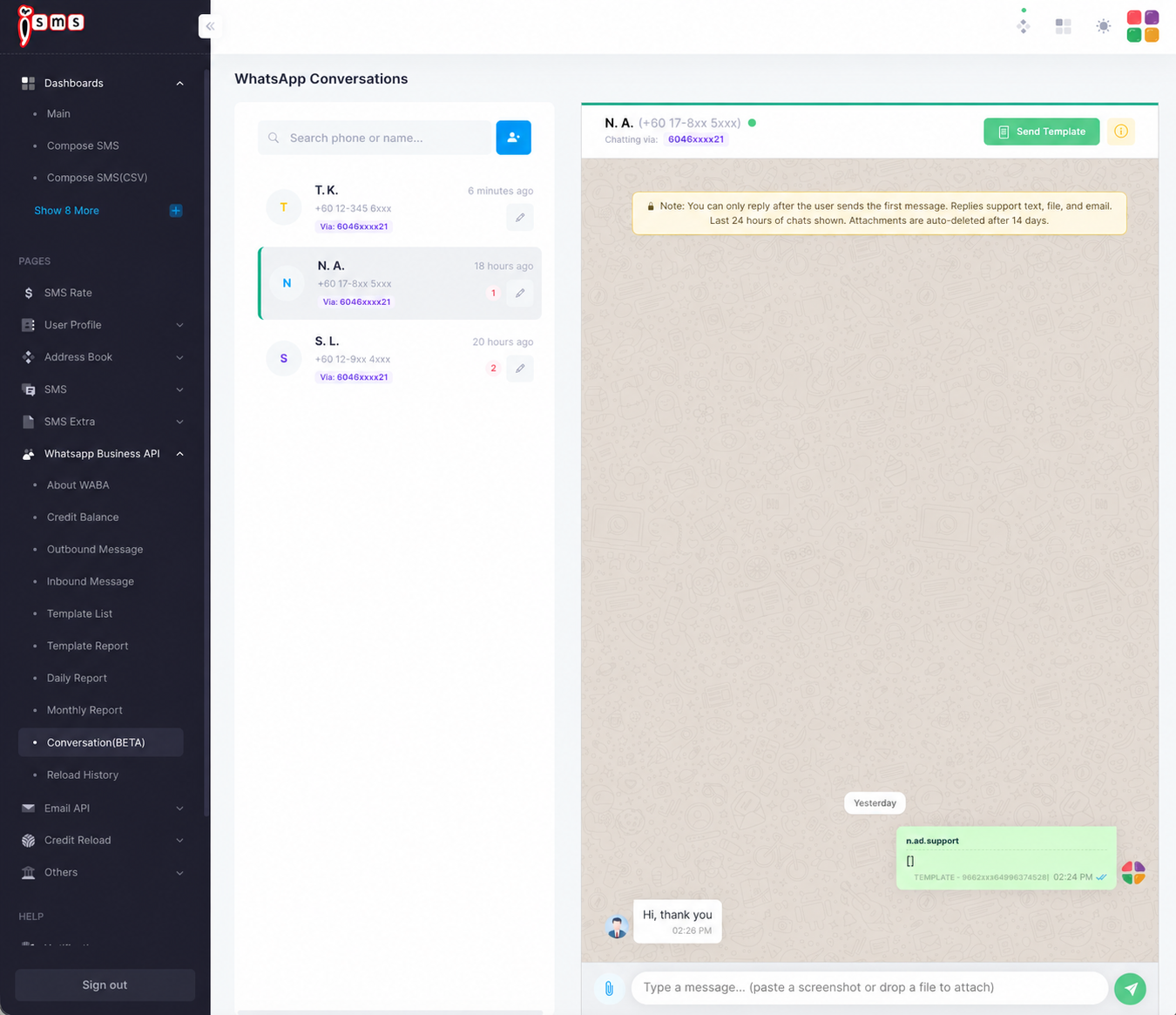
3. Reply with text, a file or a template
When the service window is open
Type the reply in the selected chat’s message box. Check the content and recipient before sending. The supplied portal guide also supports pasting a screenshot or dragging a file into the message box; check that you have attached the intended file and that it is suitable to share with this customer.
When you need an approved template
Use Send Template in the chat. Select an available approved template, complete its variables and review the message before sending. If you need a new template, follow the create-and-send guide first.
Avoid sending a generic placeholder or unrelated promotional template simply to continue a support conversation. Choose content appropriate to the customer’s request and the template’s approved use.
4. If a conversation or reply is missing
- Check the destination number. Confirm which business number the customer messaged and that your portal account can access it.
- Check the inbound report. Use Inbound Message to look for the customer’s message in the relevant period. A portal search or history limit is different from whether a message was received.
- Check the reply window. A rejected free-form reply may need an approved template instead. Review the message’s actual error details.
- Check attachments promptly. Follow the portal’s retention notice and save required business records securely. Do not treat the inbox as a permanent document archive.
- Ask support with useful details. Provide the business number, approximate time and error reference. Remove credentials and unnecessary customer information.
If you are using WhatsApp Business App Coexistence, confirm which app and portal history your setup supports. This tutorial describes the web inbox and does not promise that every app feature or historical chat is mirrored there.
Sources & related help
This iwsapp.my tutorial adapts the relevant WhatsApp procedures from our shared iSMS user guide.