On this page
Before you start
- Have an approved WhatsApp template available for the business number you will use.
- Prepare recipients who have given the required permission. Remove anyone who has opted out.
- Check the selected number’s balance and the applicable pricing before sending.
Screenshots show the shared iSMS portal used in these instructions. iSMS and iwsapp.my are operated by Mobiweb Sdn Bhd. Your enabled features and menu labels may vary by account.
1. Download the matching sample
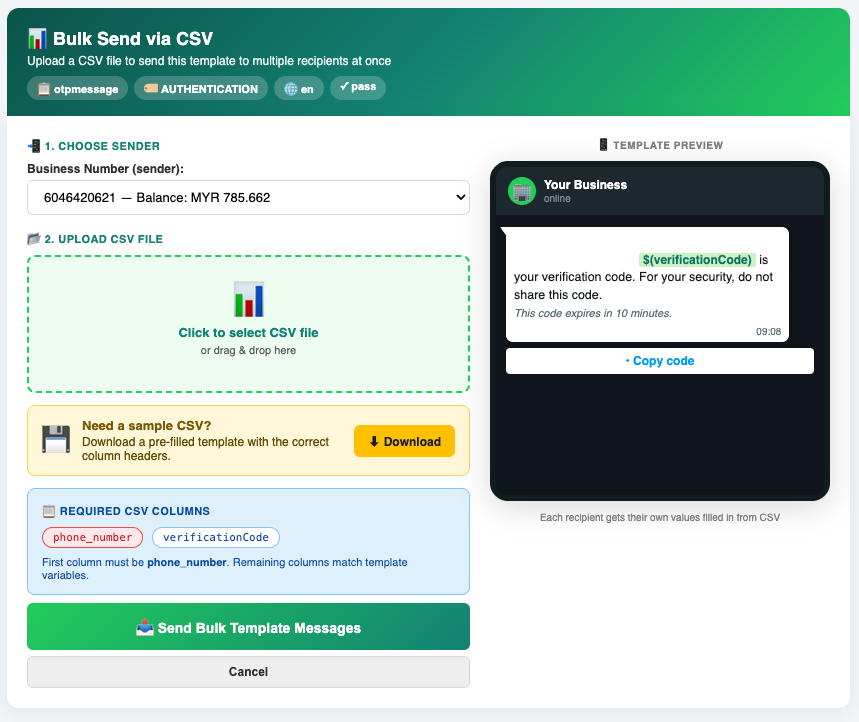
Open WhatsApp Business API → Template List. Find the approved template, select Actions → Send, then choose Bulk Send via CSV. Use Download on that page to get the sample CSV for the selected template.
The first column must be phone_number. The remaining column headers must exactly match the template’s variable names. Use the downloaded headers instead of reusing a file from a different template.
Match names, not just column positions. If the template uses $(name) and $(orderid), the corresponding headers are name and orderid, without the $() wrappers. Keep the spelling and capitalisation used by the downloaded sample.
2. Prepare one row per recipient
For the illustrative order-update template in our template guide, the file would have this structure:
phone_number,name,orderid
REPLACE_WITH_TEST_NUMBER,Aina,ORDER-1001
REPLACE_WITH_ANOTHER_TEST_NUMBER,Daniel,ORDER-1002
Do not upload these placeholder phone values. Replace them with consenting recipients’ complete international numbers in the format shown by the portal’s sample. The example demonstrates column matching, not a ready-to-send contact list.
- Keep phone numbers as text in your spreadsheet. Check that spreadsheet software has not shortened them, removed digits or converted them to scientific notation.
- Fill every required variable. Check names and references against the correct recipient row. Do not use another customer’s order information.
- Clean up the list. Remove unintended duplicates and blank rows. Verify that excluded and opted-out contacts are not included.
- Export as CSV. Use UTF-8 when saving names in multiple languages. An Excel workbook renamed with a
.csvextension is not a CSV file. Reopen the exported file and check the headers and values.
3. Upload, preview and test
- Choose the sender
Confirm the Business Number in the bulk sending screen. A balance on another number does not replace checking the sender selected for this batch.
- Upload the CSV
Choose your
.csvfile or drag it onto the upload area. If the portal reports missing columns or values, compare the file with the downloaded sample. - Review the template and your source rows
Check the template preview, language, media and links. Also inspect the CSV itself: a template preview alone does not confirm every customer’s personalised data.
- Send a small test batch first
Use consenting test recipients with representative variable values. Click Send Bulk Template Messages when ready, then verify the actual received messages and report results before sending the full list.
4. Check results before retrying
After submission, open the Outbound Message report and filter for the relevant sending period and business number. Review individual results instead of assuming that every row was delivered.
If only some messages fail, investigate those recipients and the reported reason before preparing a retry. Do not immediately resend the whole CSV after a timeout or an unclear result: some messages may already have been accepted.
Common file checks
- Missing variable: use the exact header from the portal sample and check for an empty cell.
- Wrong personalisation: confirm that each row belongs to the intended recipient and that you selected the matching template.
- Unexpected characters: check the exported CSV encoding and the received test message.
- Unable to send: check template approval, sender activation and the selected number’s balance before asking support to investigate.
Store and share customer CSV files securely. For support, provide the template name and error details with personal data and credentials removed unless a secure support process specifically requires them.
Sources & related help
This iwsapp.my tutorial adapts the relevant WhatsApp procedures from our shared iSMS user guide.