On this page
Before you start
- Sign in to the portal with permission to view the relevant business number and its reports.
- Note the sending date, business number and template name or message reference you want to check.
- Treat balances and charges in screenshots as examples, not a current quote. See WhatsApp pricing or confirm your account rates with our team.
Screenshots show the shared iSMS portal used in these instructions. iSMS and iwsapp.my are operated by Mobiweb Sdn Bhd. Your enabled features and menu labels may vary by account.
1. Find the result of a sent message
- Open Outbound Message
Go to WhatsApp Business API → Outbound Message. This report covers messages your business sends, not customer replies.
- Set the relevant filters
Choose the date range containing the send. Use the business-number or other available filters to narrow the results, then apply them. Confirm the reporting timezone when matching a message to an external record.
- Look at the individual message
Use the Message Details table to review its status, direction and charge. Overall totals alone cannot confirm whether one particular customer received a message.
- Investigate before retrying
If the result is failed, pending or unclear, check the available error information and allow for status updates. Do not automatically repeat a whole batch because some receipts have not arrived.
Read the statuses carefully
- Sent: the message has moved into the sending process; this is not confirmation of delivery to the recipient.
- Delivered: a delivery confirmation is available. It does not, by itself, confirm that the customer read the message.
- Read: a read receipt is available. The absence of a read receipt does not prove the message was unread.
- Failed or rejected: inspect the reported reason before correcting and resending.
For more context, see WhatsApp delivery statuses and error codes.
2. Choose the report for your question
All of these reports are under WhatsApp Business API. Keep the same date range, direction and business-number filters when comparing figures.
| Report | Use it to answer |
|---|---|
| Outbound Message | What did we send, which delivery results are available, and what charge is recorded for a message? |
| Inbound Message | What did customers send us, how many distinct senders contacted us, and what message types did we receive? |
| Daily Report | How did inbound and outbound activity change from day to day? |
| Monthly Report | Which days had activity? Select a day in the calendar for its breakdown and use the direction filters as needed. |
| Template Report | Which templates did we send, in which categories, and what usage and charges are recorded? |
Inbound messages are received from customers; they should not be interpreted using the outbound delivery funnel. In Template Report, filter by date or template code, then compare the business number, template name, category and count in the details table.
Use the report’s CSV export when you need to reconcile records in a spreadsheet. Recent delivery and read figures may still change as status updates arrive, so record when you exported the report and use matching filters for a later comparison.
3. Check credit for the selected number
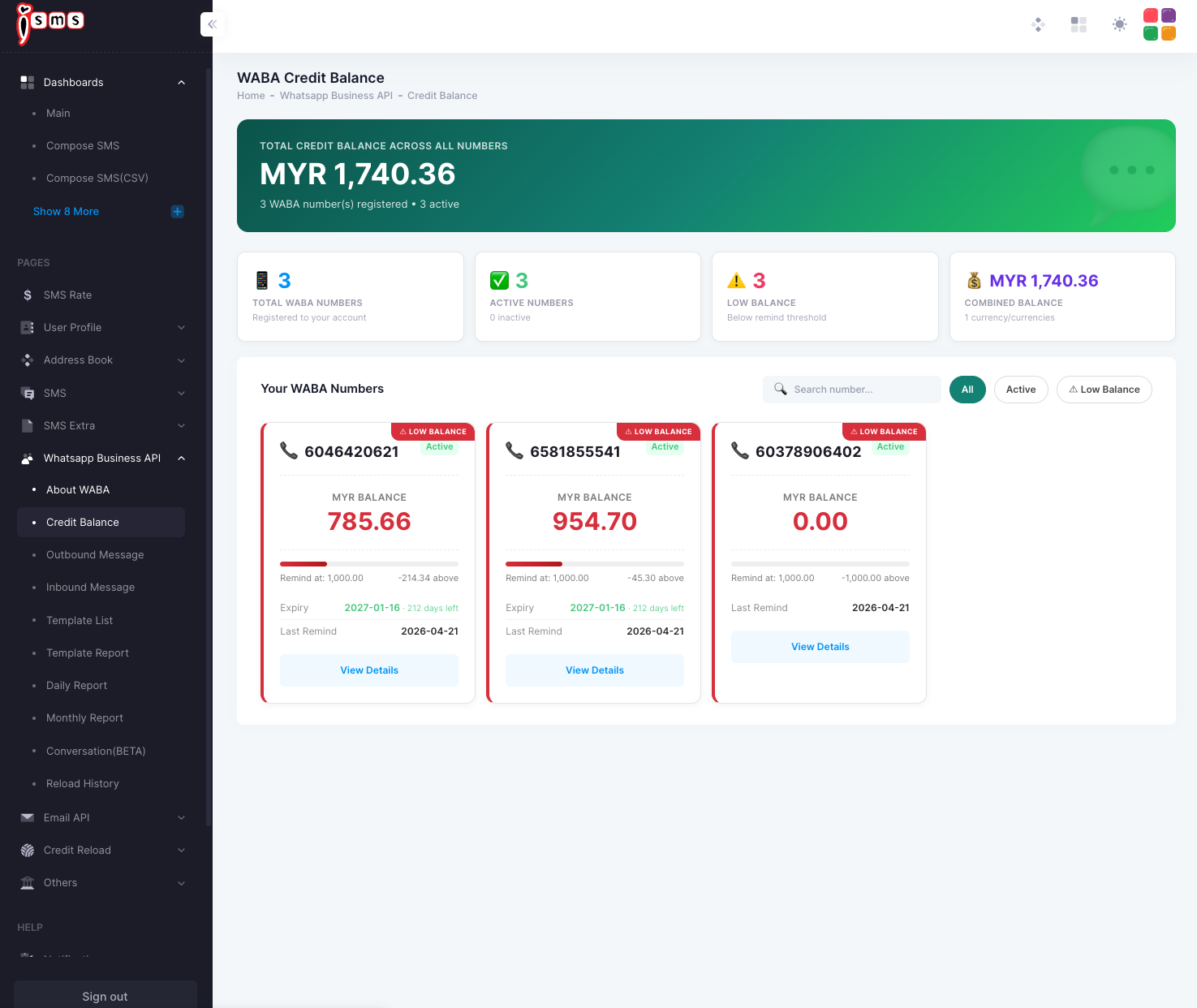
Open WhatsApp Business API → Credit Balance. The summary shows a combined balance, while each number has its own card. Search for the number or use the All, Active and Low Balance filters.
- MYR balance: the credit displayed for that WhatsApp number.
- Remind at: the threshold used for the low-balance reminder.
- Expiry: the expiry information shown for the number’s credit.
- Last remind: when the most recent reminder was sent.
- View Details: the history for that number.
Check the sender, not only the combined total. Before sending a CSV or a larger batch, review the card for the exact business number you selected. A low-balance warning means the reminder threshold has been reached; it does not necessarily mean the balance is zero.
4. Resolve balance or report questions
If credit is low or approaching its displayed expiry, contact our team about your account’s top-up arrangements before starting a larger send. Check the applicable destination and template-category rates on the pricing page or in your agreed quotation.
For an unexpected charge or missing result, collect the business number, date range, report name, template or message reference, and the filters used. Send a redacted screenshot if useful. Do not include a password, API secret or an entire customer contact list.
Reports show messaging activity and recorded charges; they do not by themselves measure sales or customer satisfaction. If you need those outcomes, reconcile message references with your own order or support records.
Sources & related help
This iwsapp.my tutorial adapts the relevant WhatsApp procedures from our shared iSMS user guide.